Connect ServiceTitan
Bookings onto the Call Booking screen, and completed jobs back.
On this page
- Before you start
- What this does, and what it deliberately does not do
- Step 1: Get the ServiceTitan app on your Zapier account
- Step 2: Start a Zap and copy its web address
- Step 3: Paste that address into CaughtLeads
- Step 4: Create the booking in ServiceTitan
- Step 5: Send finished jobs back
- If something does not work
Connect ServiceTitan and every booking your receptionist takes arrives on your Call Booking screen, where a CSR accepts it like any other booking request. When the job is completed and invoiced, its total comes back to us and the appointment is marked held with that amount.
This runs through your own Zapier account
Before you start
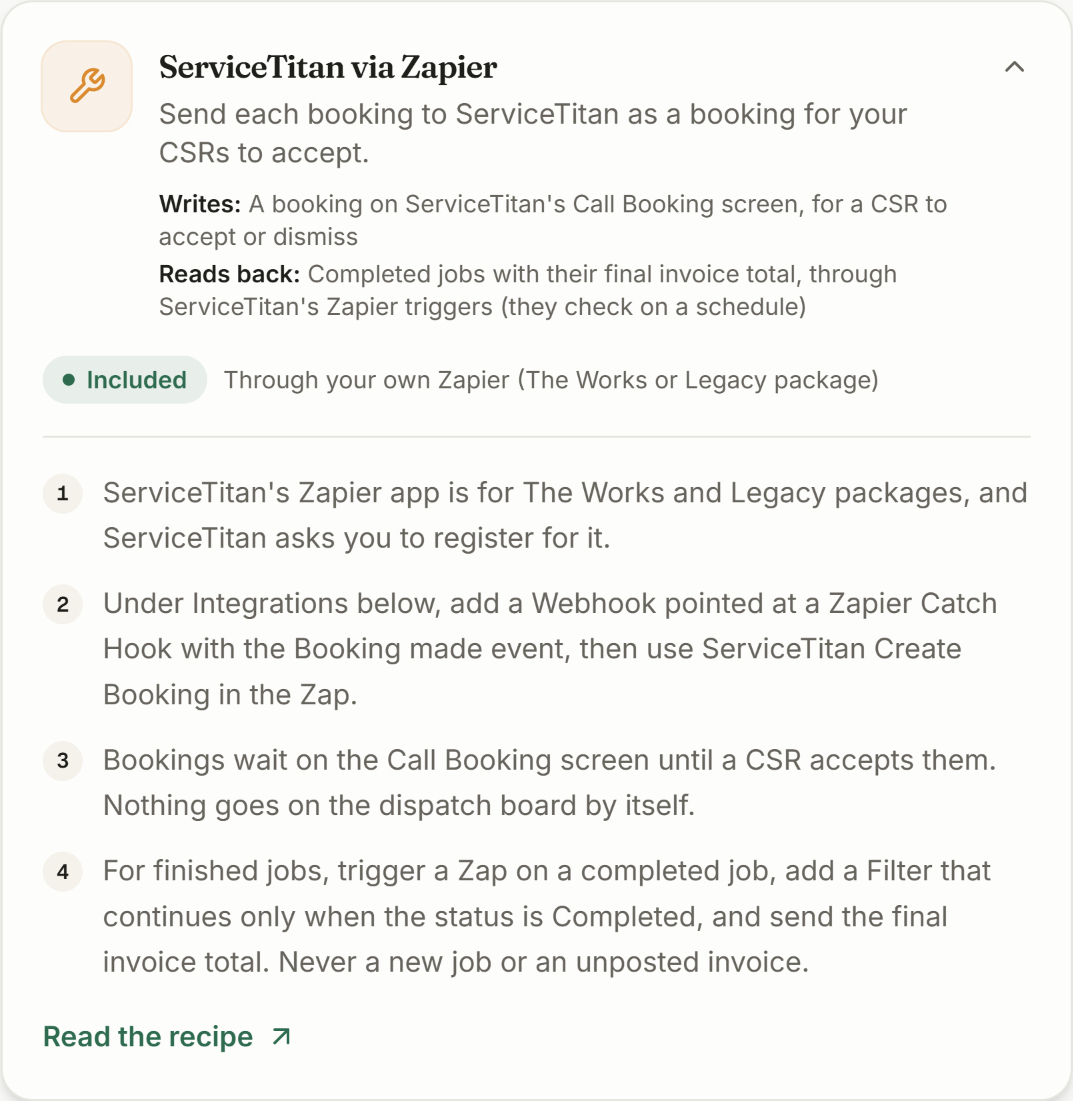
- A ServiceTitan account on The Works or a Legacy package. ServiceTitan offers its Zapier app on those packages only, as an open beta that ServiceTitan itself does not officially support.
- A Zapier account on the Professional plan or higher. Catching a web address, which is step 2 below, is not available on Zapier’s free plan.
- Your CaughtLeads login, with owner or admin access.
- About twenty minutes, plus however long ServiceTitan takes to approve your request in step 1.
What this does, and what it deliberately does not do
A booking from us lands on the Call Booking screen, and in the Unassigned column of your dispatch board’s job tray. It waits there until one of your people accepts it or dismisses it.
Nothing goes onto the dispatch board by itself, and no technician is assigned. That is intentional. An AI putting work straight onto a live board is how a shop ends up with a truck sent to a call that should never have been taken. Your CSR stays the last word.
Step 1: Get the ServiceTitan app on your Zapier account
This step is between you and ServiceTitan. We are not involved, and you only do it once.
- 1
Ask ServiceTitan to enable Zapier for your account
ServiceTitan asks each customer to register for its Zapier app rather than opening it to everyone. Your ServiceTitan success manager, or their support, is the right person to ask.
- 2
Wait for them to confirm
Until they do, searching for ServiceTitan inside Zapier will either find nothing or refuse to connect. There is no way around this from our side, so it is worth starting before you do anything else.
- 3
Connect ServiceTitan inside Zapier once
When Zapier asks you to sign in to ServiceTitan, do it once here and every later Zap will reuse that connection.
You can do steps 2 and 3 while you wait
Step 2: Start a Zap and copy its web address
- 1
In Zapier, create a new Zap
For the trigger app, search for Webhooks by Zapier and choose it. This is Zapier’s own built-in app, not something you install.
- 2
Choose the Catch Hook event
Pick Catch Hook from the event list, then continue. Leave the Child Key box empty on the next screen.
- 3
Copy the web address Zapier shows you
It starts https://hooks.zapier.com/hooks/catch/. Copy it, and leave this Zapier tab open on the test screen.
Step 3: Paste that address into CaughtLeads
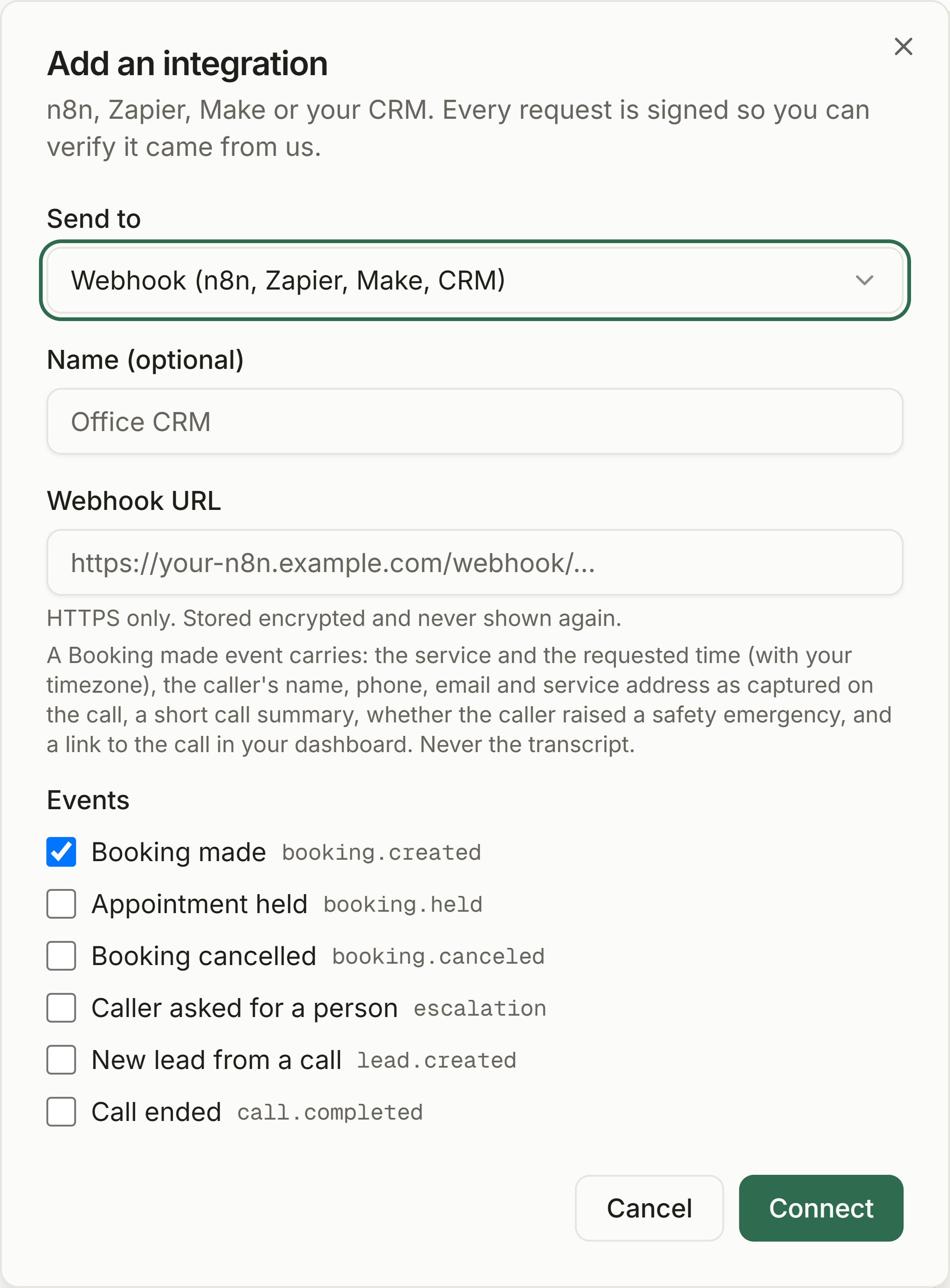
Open Connections in the sidebar and scroll to Integrations at the bottom of the page.
- 1
Press Add integration
It is the button on the right of the Integrations panel, at the bottom of the Connections page.
- 2
Leave Send to on Webhook
Webhook (n8n, Zapier, Make, CRM) is already selected and is the right one.
- 3
Name it ServiceTitan and paste the address
The Name box is optional but worth filling in. Paste the Zapier address into Webhook URL, and check there is no stray space on the end.
- 4
Leave Booking made ticked, then press Connect
It is ticked for you, and it is the only event this Zap needs. Leave the other five alone.
Copy the two values on the next screen
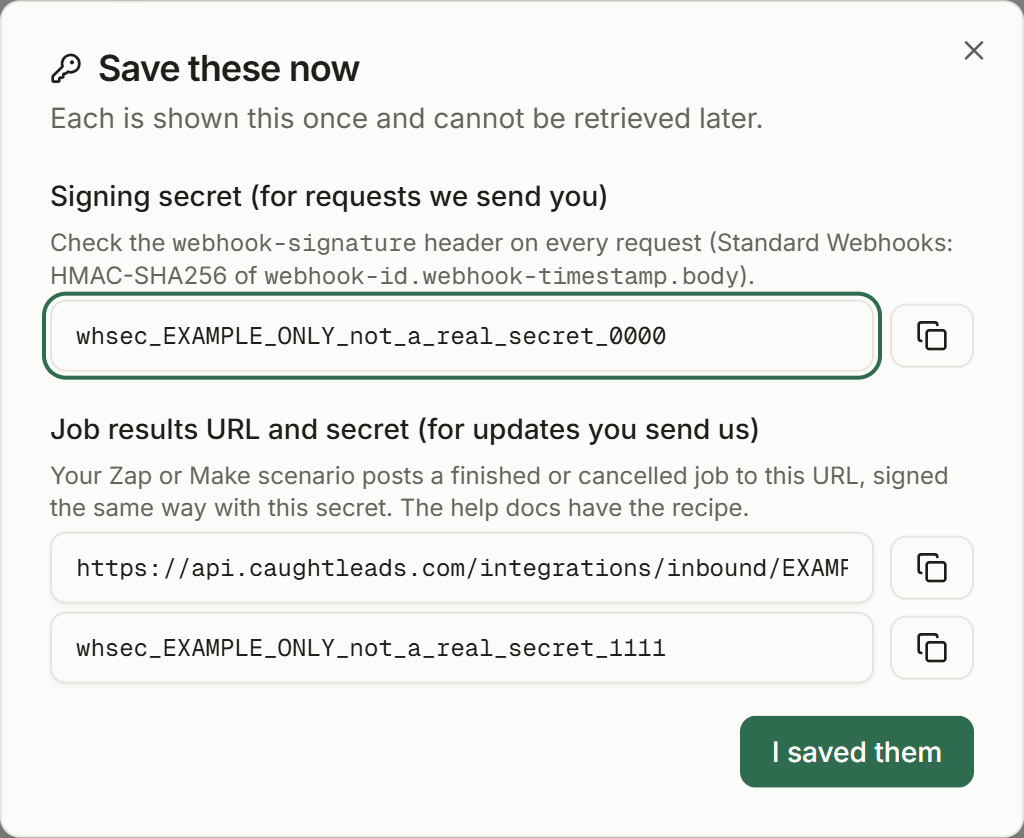
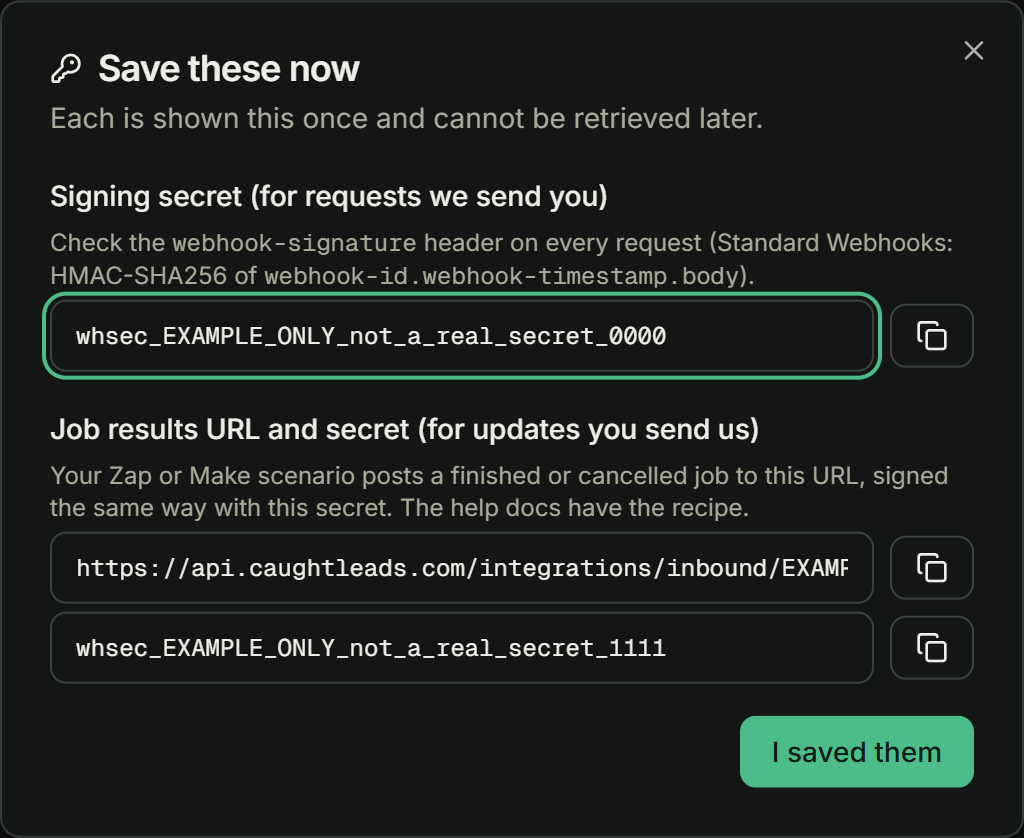
Step 4: Create the booking in ServiceTitan
Back in your Zapier tab. First give Zapier a sample so it knows what our bookings look like.
- 1
Send Zapier a test booking
Call your CaughtLeads number and book an appointment, as in Make your first test call. Then press Test trigger in Zapier. It should find that booking and list its fields. The Send a test button on the connection sends a short test message with no booking fields, so it is no use for mapping.
- 2
Add ServiceTitan: Create Booking
For the action app, search ServiceTitan and choose Create Booking.
- 3
Fill in the six fields it asks for
It needs a booking provider (pick yours), a source, a name, a summary, whether this is a first-time client, and an external id. Use the caller’s name for the name, data service and data call_summary for the summary, and data booking_id for the external id.
- 4
Turn the Zap on and watch Call Booking
Take a real test call, or ask us to place one for you. The booking should appear on your Call Booking screen within a minute or two.
The external id is not optional in practice
Why every field starts with data
Step 5: Send finished jobs back
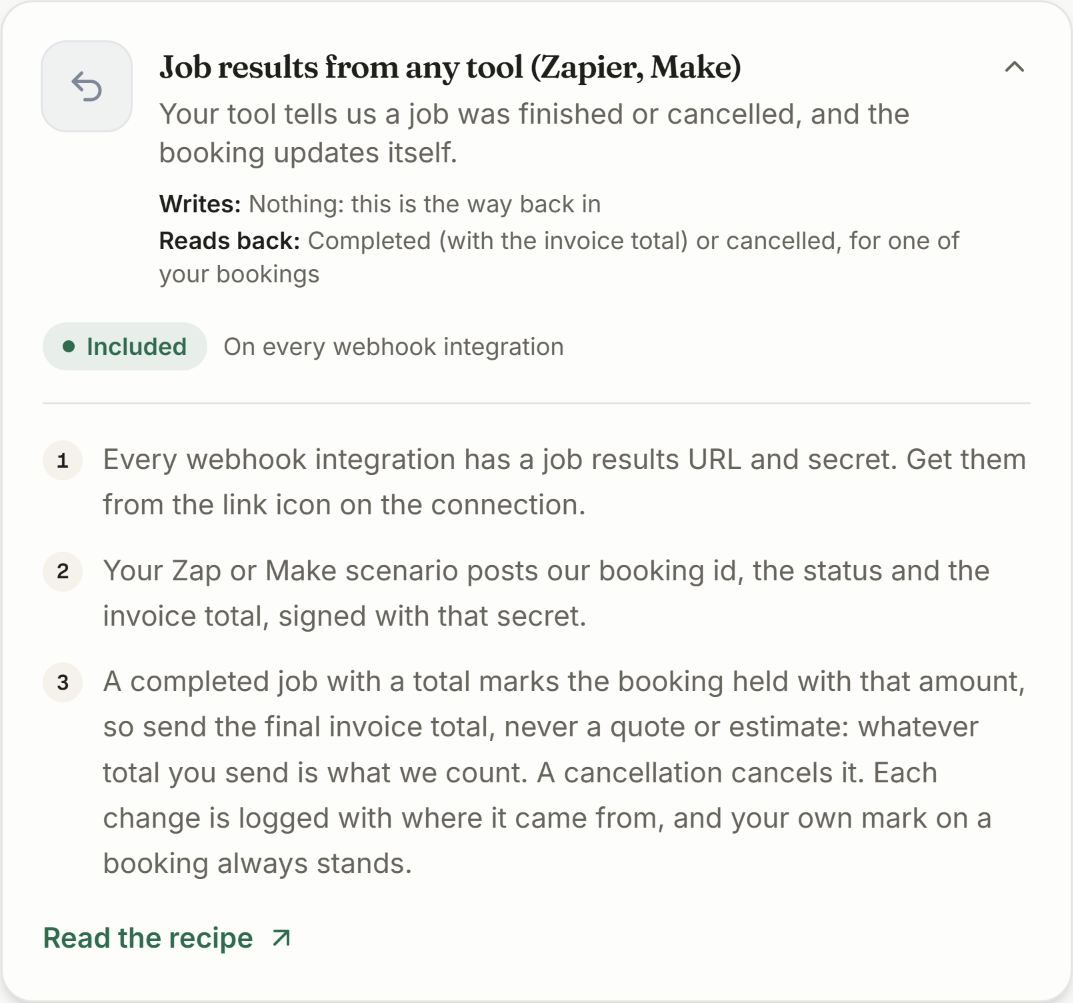
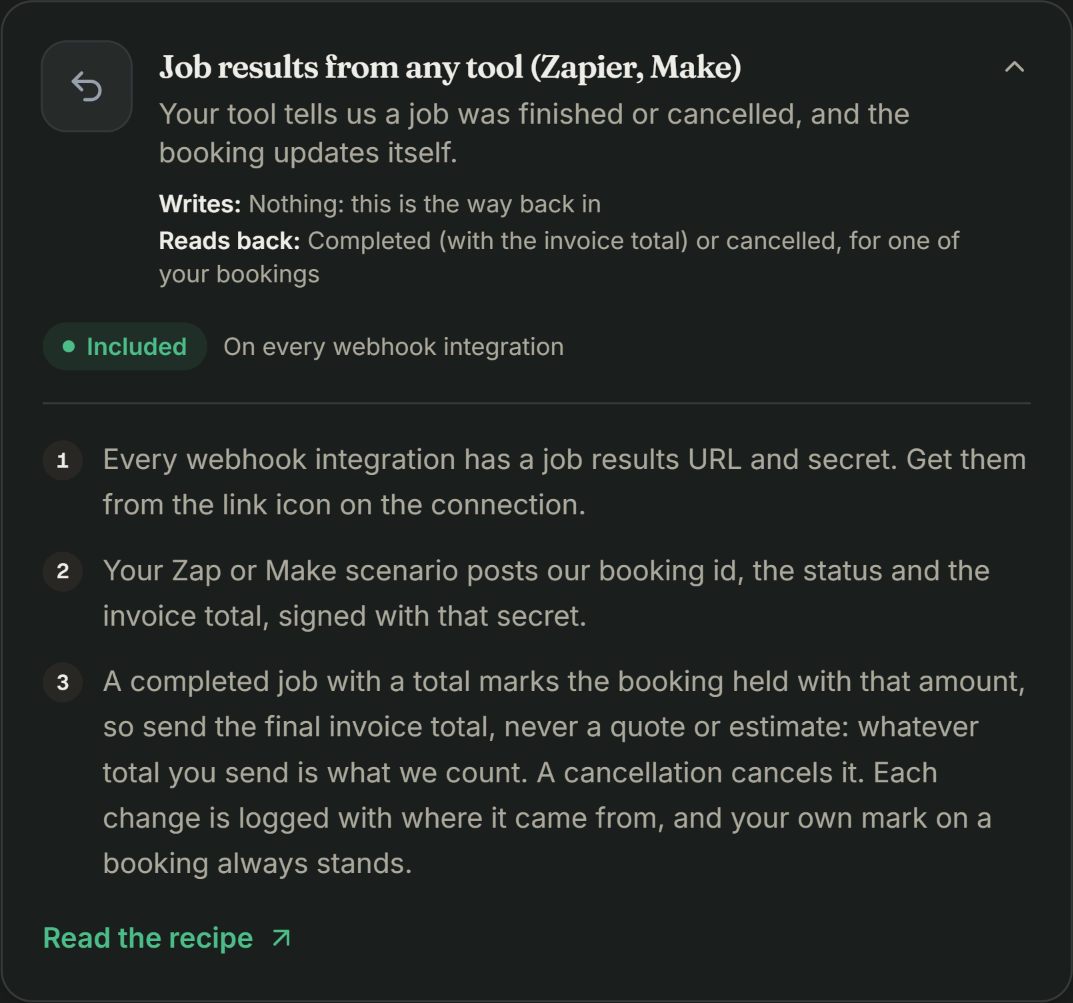
Bookings flowing into ServiceTitan is half the job. The other half is ServiceTitan telling us what the work was worth, so a booked appointment becomes a held one with a real dollar figure on your report.
This is a second Zap, running the other direction.
- 1
Start a new Zap triggered on a completed job
Use ServiceTitan’s completed-job trigger. Do not trigger on a new job, and do not trigger on an unposted invoice.
- 2
Add a Filter step
Use Filter by Zapier and let it continue only when the status is Completed. This is what stops a job in progress being counted as money earned.
- 3
Add a Code by Zapier step
This is the step that tells us the total. It needs the job results URL and secret you saved in step 3, our booking_id, the status, the final invoice total, and unit set to dollars. The ready-made code to paste is on the field-service software reference page.
- 4
Turn it on and complete one small job
Then open Attribution in CaughtLeads. The booking should move from booked to held with that invoice total against it.
ServiceTitan's triggers run on a schedule
What we do with what you send
If something does not work
ServiceTitan does not appear in Zapier
Either your package is not The Works or Legacy, or ServiceTitan has not registered your account for its Zapier app yet. Step 1 is the fix, and only ServiceTitan can do it. Nothing on our side will change this.
Zapier will not let me use a Catch Hook
You are on Zapier’s free plan. Catching a web address needs the Professional plan, which starts at $19.99 a month billed yearly or $29.99 billed monthly at the time of writing, and rises with how many tasks you run. That is a Zapier charge, not ours.
The Zap never fires when a booking happens
Check three things in this order. The integration in CaughtLeads has Booking made ticked. The address you pasted is the Catch Hook address. And the Zap is switched on rather than left as a draft, which is the usual answer.
Bookings never reach the Call Booking screen
Open the Zap’s history in Zapier. If the ServiceTitan step errored, the message will name the field it did not like, and it is usually the booking provider or the source, both of which have to match a value that already exists in your ServiceTitan.
Completed jobs never mark anything held
Three usual causes. The job your CSR created from our booking lost the external id, so there is nothing to match on. The filter is stopping every run. Or our reply was an error: a 401 means the secret is wrong, a 404 means that booking id is not one of yours. The Zap history shows which.