Connect Jobber
Bookings into Jobber through Zapier, and invoices back as held revenue.
On this page
Connect Jobber and every booking your receptionist takes becomes a client and a request in Jobber, without anyone retyping it. When the invoice for that job is sent or paid, its total comes back to us and the appointment is marked held with that amount.
This runs through your own Zapier account
Before you start
- A Jobber account you can sign in to, on a plan that includes Zapier. Jobber’s pricing page lists it on Core, Connect, Grow and Plus.
- A Zapier account on the Professional plan or higher. Catching a web address, which is the first step below, is not available on Zapier’s free plan.
- Your CaughtLeads login, with owner or admin access.
- About fifteen minutes. Two browser tabs make it much easier: Zapier in one, CaughtLeads in the other.
How the pieces fit together
Before you click anything, it helps to know what you are building. There are two separate flows, and they run in opposite directions.
- Bookings out. A caller books. We send the booking to Zapier. Zapier creates the client and the request in Jobber. This is steps 1 to 3.
- Money back. You invoice the job in Jobber. Zapier spots that the invoice was sent or paid, and tells us the total. We mark the appointment held for that amount. This is step 4.
The first flow is the one that saves your office typing. The second is the one that makes your report true, so it is worth doing both.
Step 1: Start a Zap and copy its web address
Everything starts in Zapier, because Zapier has to give you the address we send bookings to before we can send any.
- 1
In Zapier, create a new Zap
For the trigger app, search for Webhooks by Zapier and choose it. This is Zapier’s own built-in app, not something you install.
- 2
Choose the Catch Hook event
Pick Catch Hook from the event list, then continue. Leave the Child Key box empty on the next screen.
- 3
Copy the web address Zapier shows you
Zapier displays a long address starting https://hooks.zapier.com/hooks/catch/. Copy it. Leave this Zapier tab open and sitting on the test screen, because you will come back to it in a moment.
Step 2: Paste that address into CaughtLeads
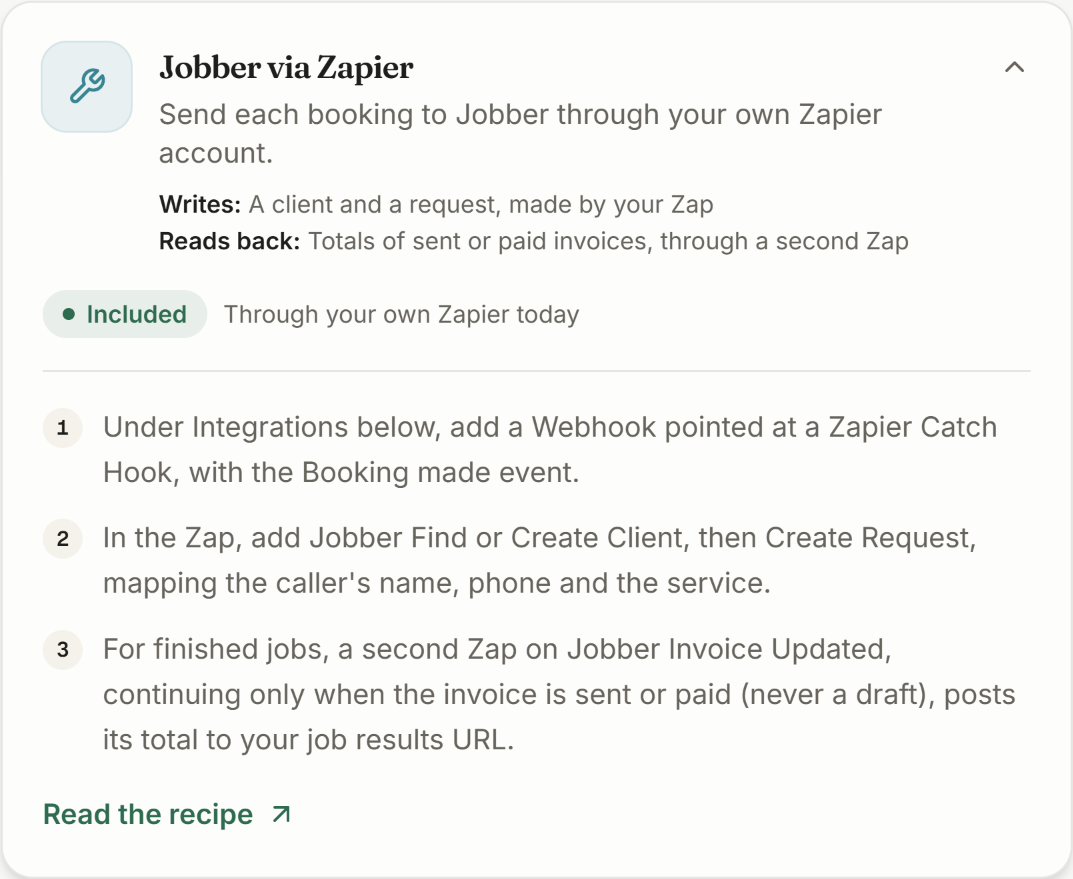
Open Connections in the sidebar and scroll to Integrations at the bottom of the page. The Jobber via Zapier card further up says the same three steps in short, and is worth a glance so you know what to expect.
- 1
Press Add integration
It is the button on the right of the Integrations panel, at the bottom of the Connections page.
- 2
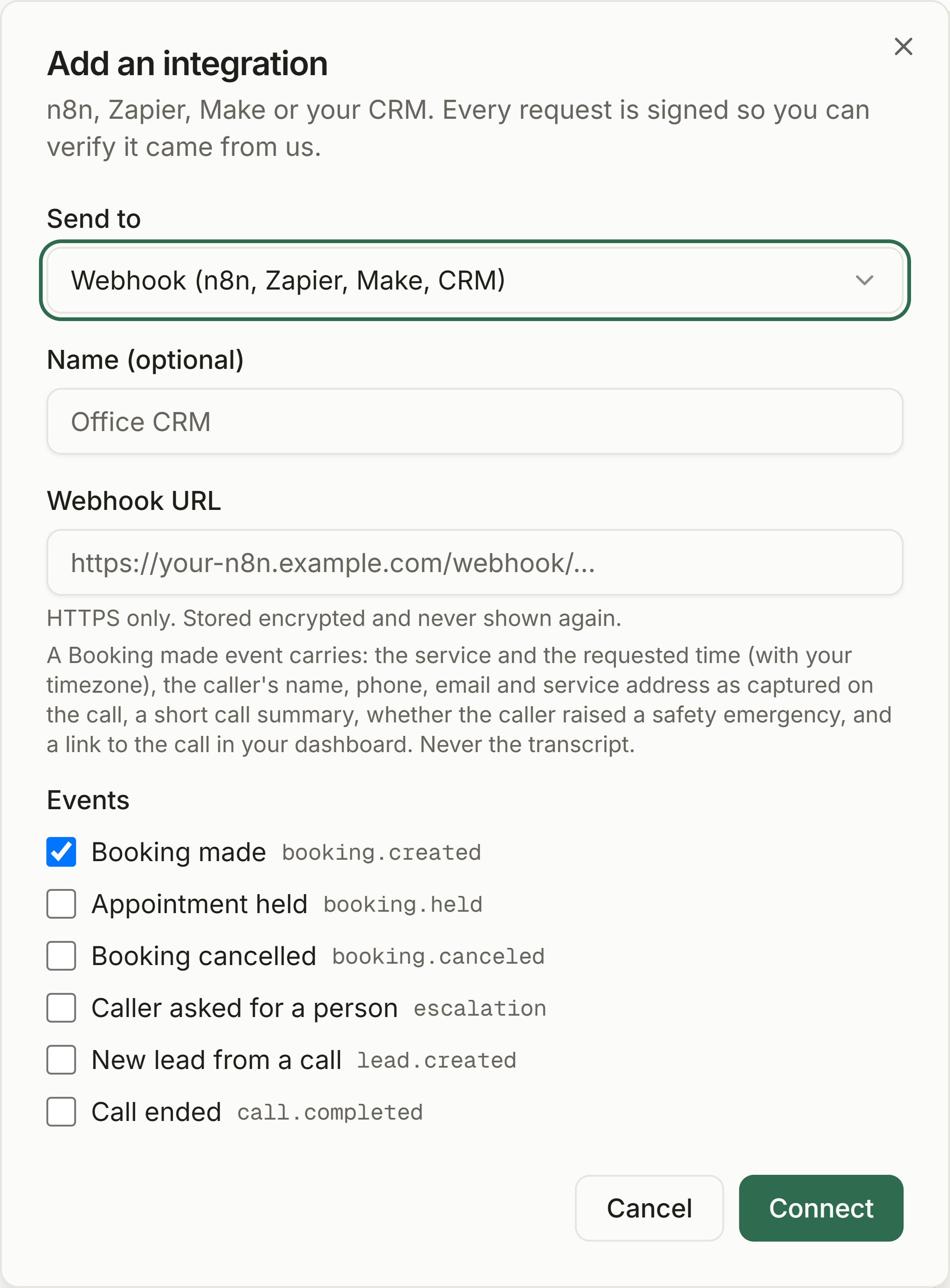
Leave Send to on Webhook
Webhook (n8n, Zapier, Make, CRM) is already selected and is the right one. Do not change it.
- 3
Give it a name you will recognise
The Name box is optional, but type something like Jobber. If you add more integrations later, this is how you tell them apart.
- 4
Paste the Zapier address into Webhook URL
Check there is no stray space on the end of what you pasted. It must begin with https://.
- 5
Leave Booking made ticked, then press Connect
Booking made is ticked for you and is the only event this Zap needs. Leave the other five alone.
Copy the two values on the next screen
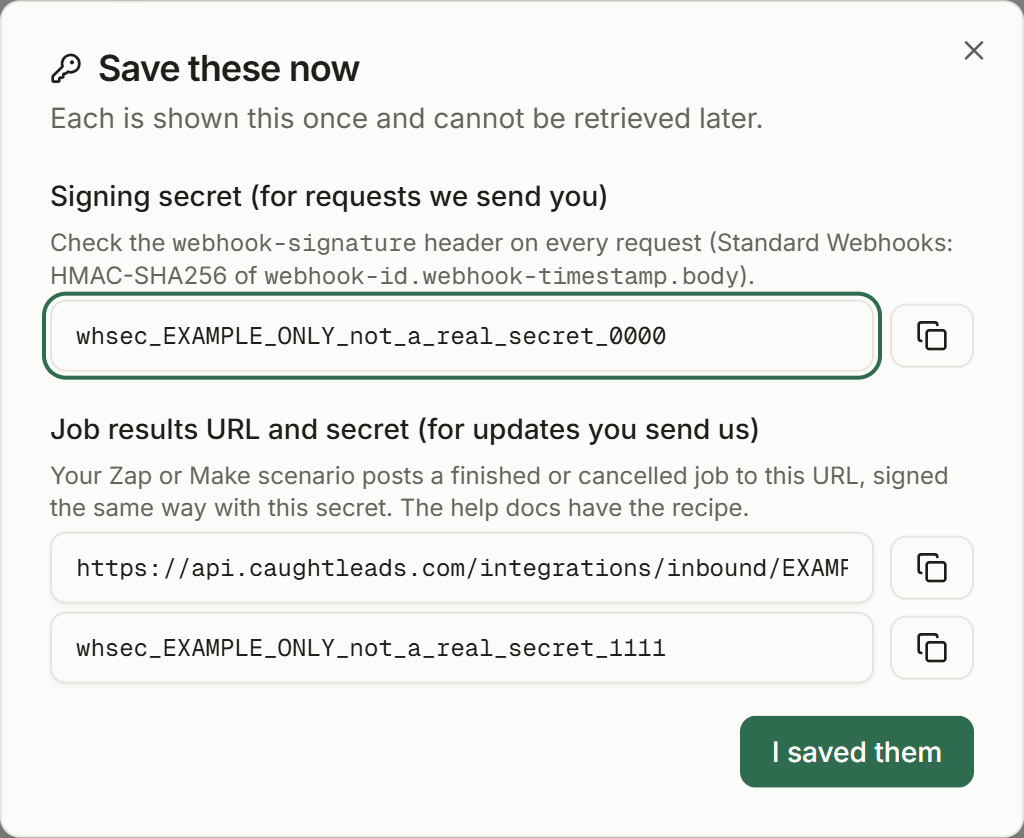
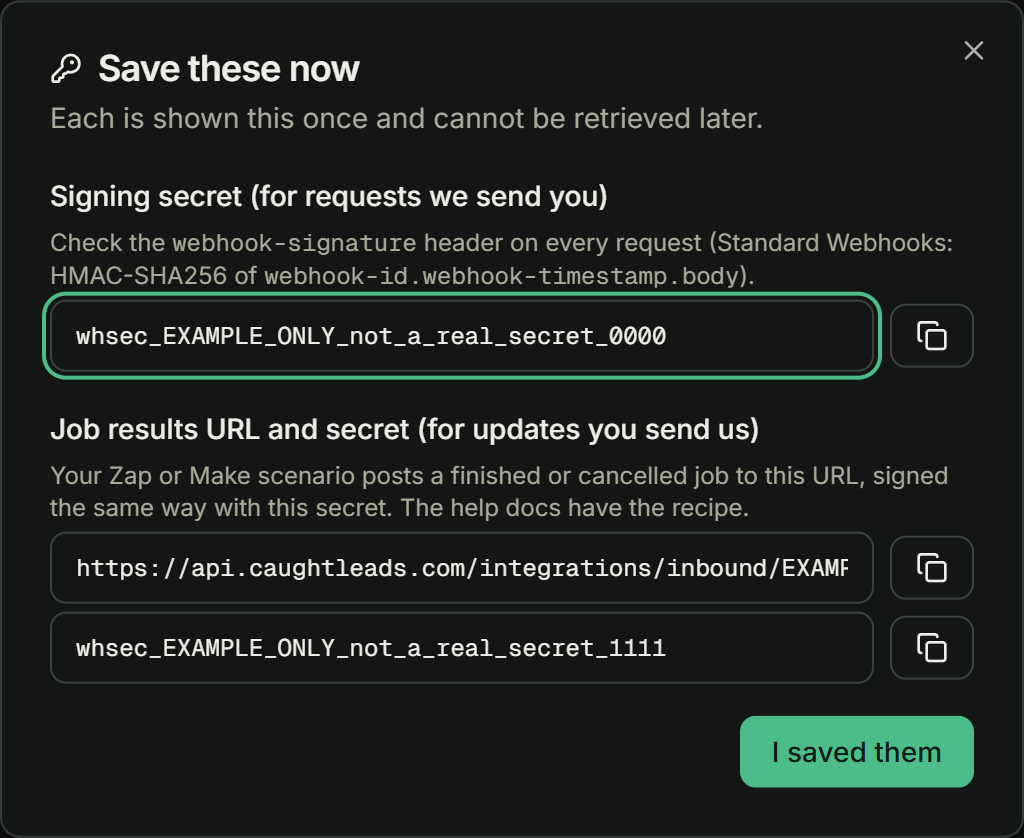
If you closed that box too quickly
Step 3: Create the client and the request in Jobber
Now go back to your Zapier tab. Zapier has been waiting for a sample booking so it knows what our data looks like.
- 1
Send Zapier a test booking
Call your CaughtLeads number and book an appointment, as in Make your first test call. Then press Test trigger in Zapier. It should find that booking and list its fields. The Send a test button on the connection sends a short test message with no booking fields, so it is no use for mapping.
- 2
Add Jobber: Find or Create Client
For the action app, search Jobber and choose Find or Create Client. Sign in to Jobber when Zapier asks. Map the first name to data customer_first_name, the last name to data customer_last_name and the phone to data customer_phone_e164.
- 3
Add a second action, Jobber: Create Request
Point it at the client the previous step found or created. Put data service and data booking_id in the title, and put data call_summary, data service_address and data scheduled_at_local in the details.
- 4
Turn the Zap on
Then take a real test call, or ask us to place one for you, and watch the request appear in Jobber.
Why every field starts with data
Put our booking id in the request title
Clients with more than one property
Step 4: Send finished jobs back
Bookings flowing into Jobber is half the job. The other half is Jobber telling us what the work was worth, so a booked appointment becomes a held one with a real dollar figure on your report.
This is a second Zap, built the same way, running the other direction.
- 1
Start a new Zap with Jobber: Invoice Updated
This fires whenever an invoice changes in Jobber, which is more often than you want, so the next step narrows it down.
- 2
Add a Filter step
Use Filter by Zapier and let it continue only when the invoice is sent or paid. Without this, a draft invoice would mark the appointment held for an amount nobody has agreed to.
- 3
Add a Code by Zapier step
This is the step that tells us the total. It needs the job results URL and secret you saved in step 2, our booking_id, the status, the invoice total, and unit set to dollars. The ready-made code to paste is on the field-service software reference page.
- 4
Turn it on and finish one small job
Invoice it in Jobber, then open Attribution in CaughtLeads. The booking should move from booked to held with that invoice total against it.
Never use Jobber's Job Closed trigger for the total
What we do with what you send
If something does not work
Zapier will not let me use a Catch Hook
You are on Zapier’s free plan. Catching a web address needs the Professional plan, which starts at $19.99 a month billed yearly or $29.99 billed monthly at the time of writing, and rises with how many tasks you run. That is a Zapier charge, not ours.
The Zap never fires when a booking happens
Three things to check, in this order. The integration in CaughtLeads has Booking made ticked. The address you pasted is the Catch Hook address and not something else Zapier showed you. And the Zap is switched on, not left as a draft, which is the usual answer.
The request lands in Jobber with fields missing
The field names in Zapier all begin with data. If you mapped them before a real booking had come through, Zapier had nothing to list and the mapping may be empty. Book a test call, press Test trigger again, then redo the mapping with the real field names in front of you.
Bookings reach Jobber but nothing is ever marked held
Step 4 is incomplete or switched off. Open the second Zap’s history in Zapier: it will show either that it never ran, that the filter stopped it, or that our reply was an error. A 401 means the secret is wrong. A 404 means that booking id is not one of yours.
A booking went to the wrong customer or address
Find or Create Client matched an existing client it should not have, or the client has several properties and Jobber used the first one. Tidy the duplicate client in Jobber and the next booking will match correctly.