Connect Housecall Pro
Bookings into Job Inbox, finished jobs back as held revenue.
On this page
Connect Housecall Pro and every booking your receptionist takes lands in your Job Inbox by itself. When the job is completed or paid, its job total comes back to us, and the appointment is marked held with that amount. No retyping, and no guessing.
In beta
This needs the Housecall Pro MAX plan
Before you start
- A Housecall Pro account on the MAX plan.
- Admin access in Housecall Pro. A regular user cannot create an API key.
- Your CaughtLeads login, with owner or admin access.
- About five minutes.
Step 1: Create an API key in Housecall Pro
The key is how we prove to Housecall Pro that we are allowed to create jobs for you. It is made inside Housecall Pro, not here.
- 1
Sign in to Housecall Pro as an admin
A regular user account cannot reach the key screen.
- 2
Open My Apps, then All Apps
Scroll the All apps page, or use the search bar, to find API Key Management. If it is not there, the account is not on the MAX plan, and nothing below will work until it is.
- 3
Click Generate API Key
Give the key a Name you will recognise later, such as CaughtLeads. Under Permissions choose Full access, not Read-only, then click Generate key. A read-only key cannot create bookings.
- 4
Copy the key
Paste it somewhere safe before you leave the page, then bring it back here.
What the screen looks like
Treat the key like a password
Step 2: Paste the key into CaughtLeads
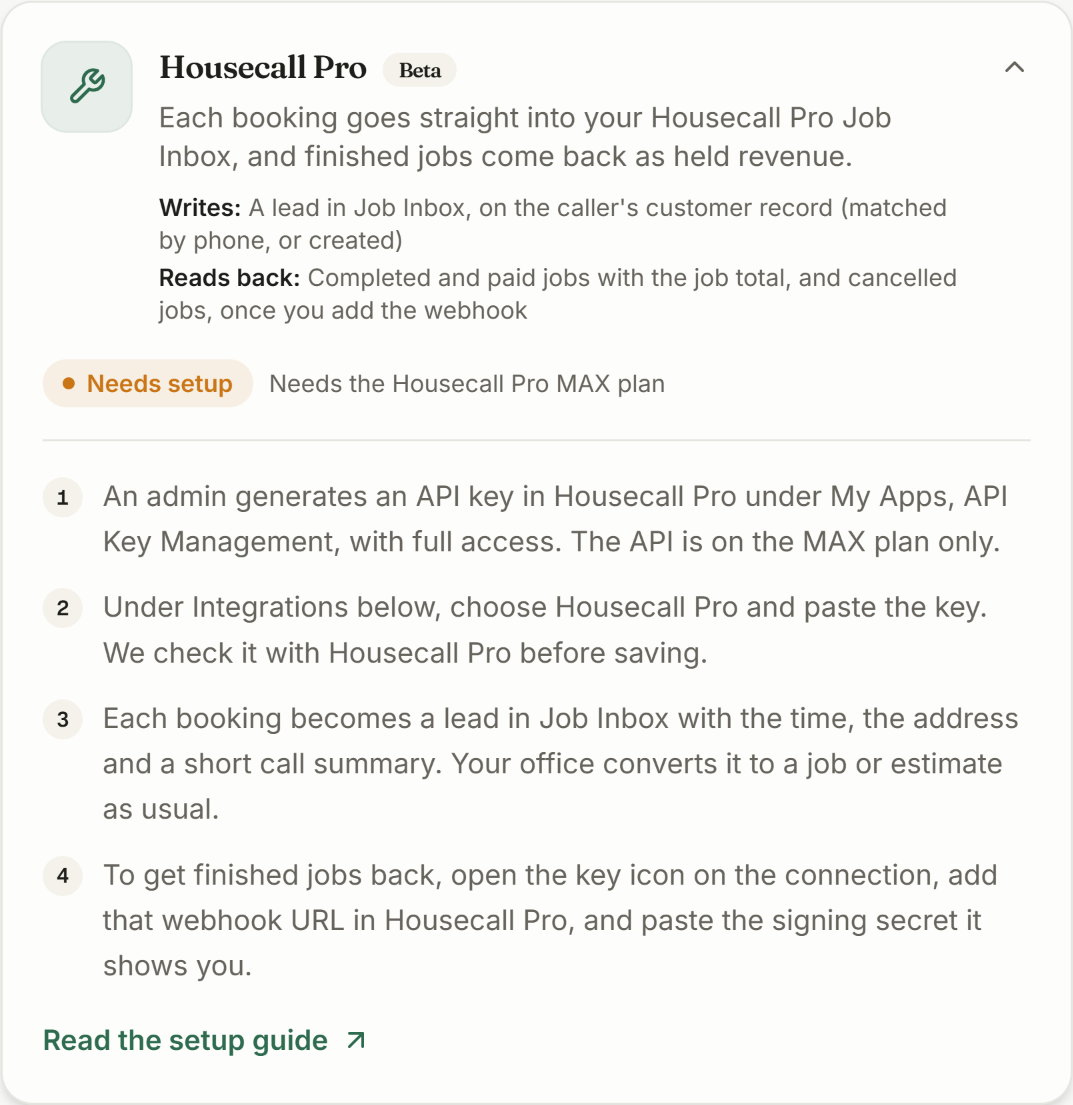
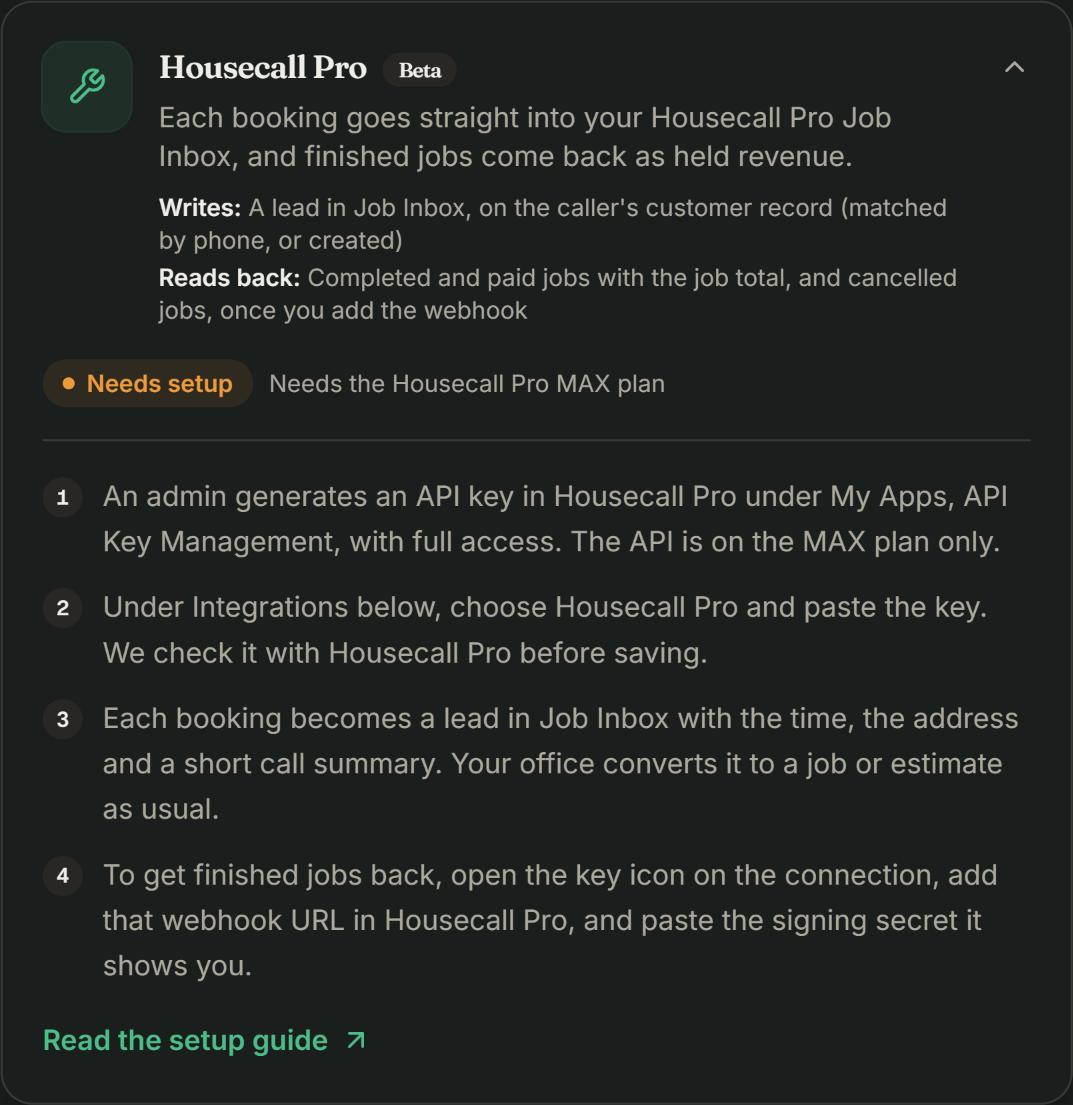
Open Connections in the sidebar. The Housecall Pro card near the bottom shows the same four steps, and what we write and read back.
- 1
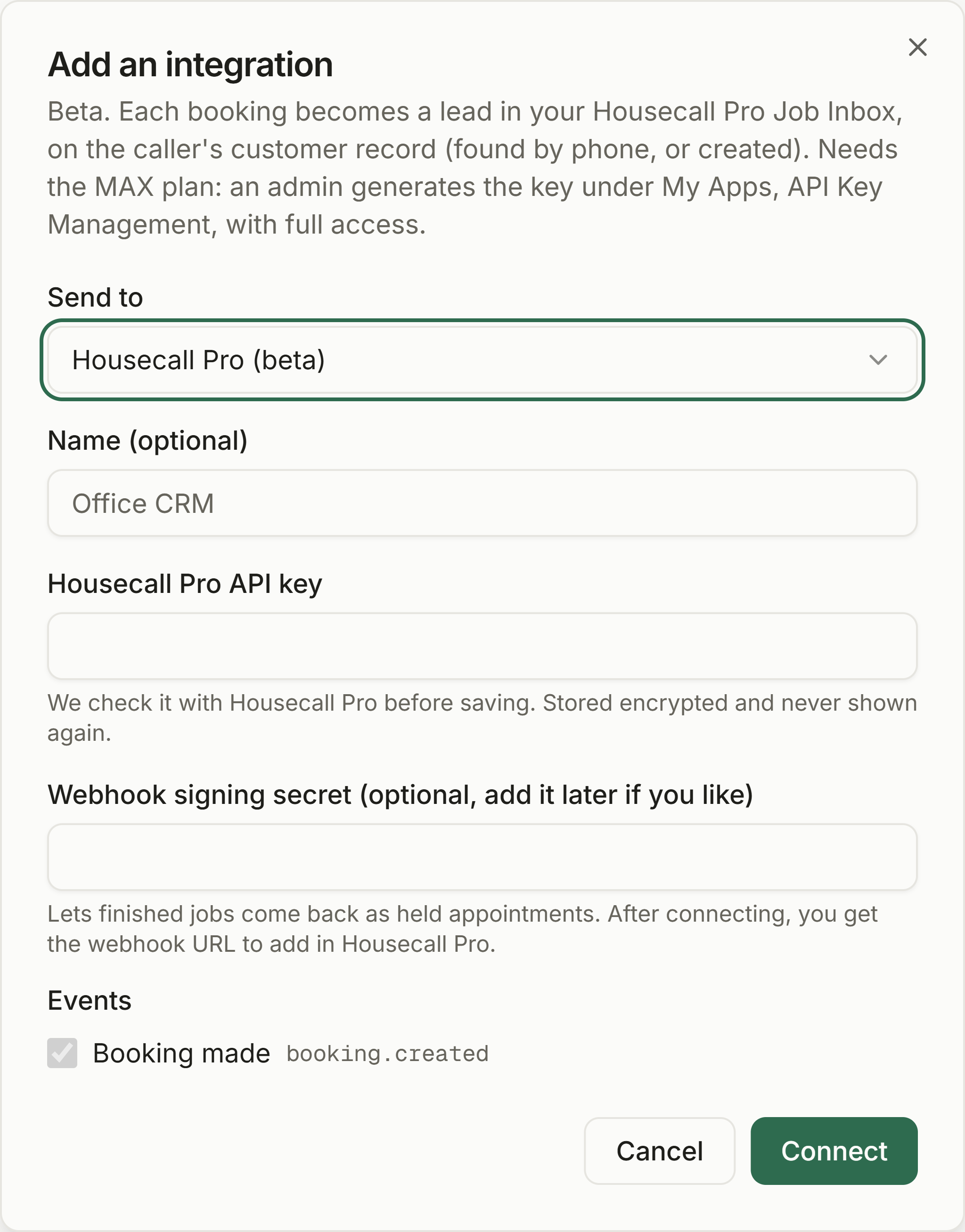
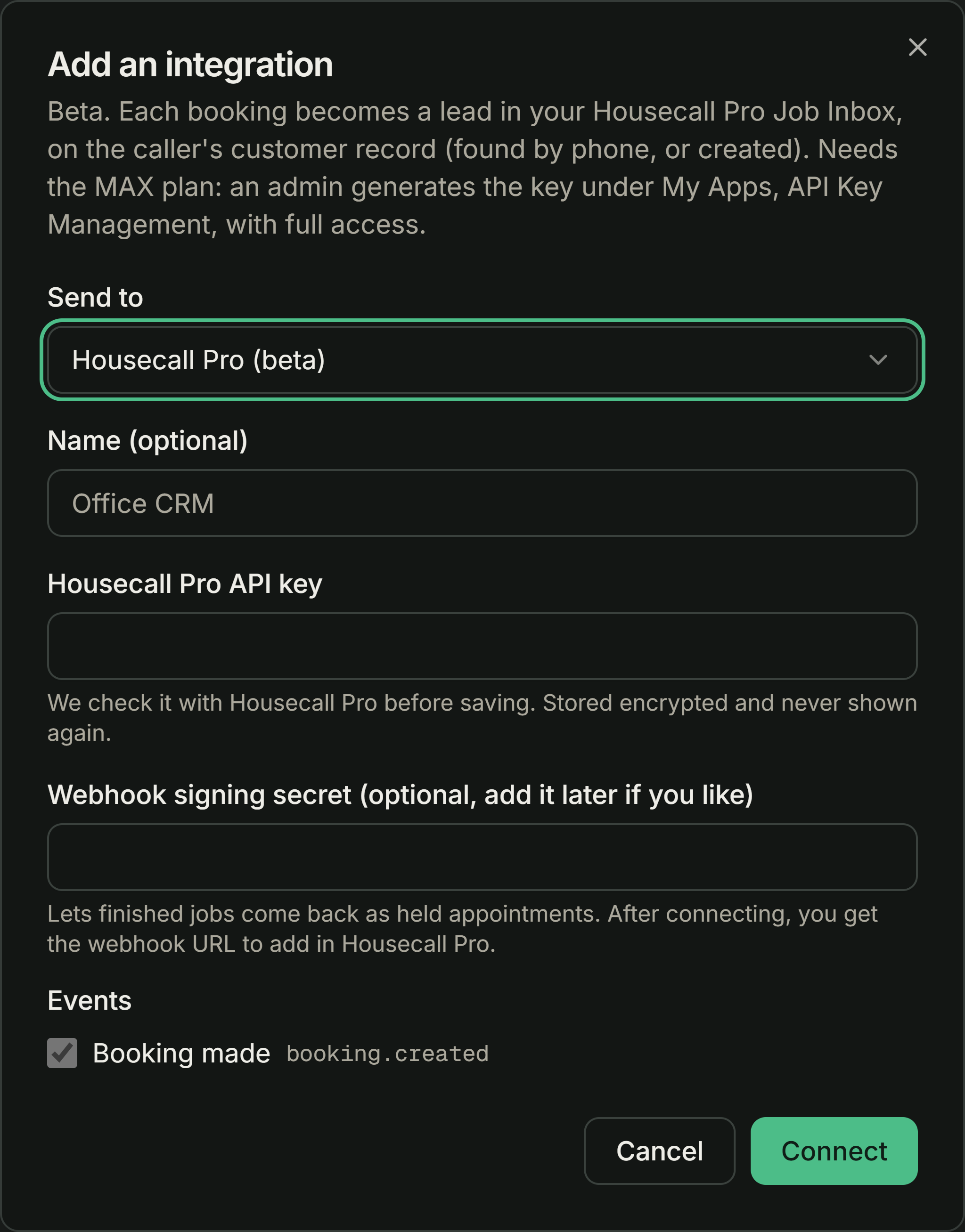
Scroll to Integrations and press Add integration
It is at the bottom of the Connections page.
- 2
Choose Housecall Pro and paste your key
Check there is no stray space on the end of what you pasted.
- 3
Connect
We check the key with Housecall Pro before storing it, so a wrong key fails here and now, rather than silently on your first real call.
You can do step 3 now or later
Once it saves, the card turns green. From that moment, every booking goes into Job Inbox as it happens.
Step 3: Send finished jobs back
Bookings flowing in is half of it. The other half is Housecall Pro telling us when a job was actually done, so a booked appointment becomes a held one with a real dollar figure against it.
Until this is set up, the Housecall Pro row in your integrations list says Add the webhook to get finished jobs back. The key icon on that row opens Housecall Pro settings, which shows your webhook URL and has a field for the signing secret Housecall Pro will give you.
- 1
Open Housecall Pro settings and copy the webhook URL
Click the key icon on the Housecall Pro row and copy the Webhook URL. Keep this box open, or come back to it after the next two steps.
- 2
Turn on Webhooks in Housecall Pro
Go to My Apps, then All Apps, open the All apps tab and choose the Webhooks app. Use the toggle at the top right to enable it and set it to Active. Like the API key, this is MAX plan only.
- 3
Paste the URL and choose the events
Put your job results URL in the Webhook URL field, enable the job events you want to subscribe to, and click Save. Housecall Pro then shows you a signing secret.
- 4
Paste the signing secret into CaughtLeads
Back in Housecall Pro settings, paste it into Webhook signing secret and click Save. The warning on the row goes away.
- 5
Finish a test job
Complete a small job in Housecall Pro, then check the booking in Attribution. It should move from booked to held with that job’s total.
What comes back, and what it does
What a booking looks like in Job Inbox
Each booking arrives as a lead in Job Inbox, attached to the caller’s customer record. We match on phone number, and create the customer if there is no match. The lead carries the requested time, the service address and a short summary of the call.
Your office turns that lead into a job or an estimate the way it always has. We do not put anything on your dispatch board by itself.
If something does not work
There is no API Key Management screen
You are not on the MAX plan, or you are not signed in as an admin. Check both before contacting support.
The key was rejected when I saved it
Three usual causes: the key was copied with a space on the end, the key is read-only rather than full access, or it was deleted in Housecall Pro after you copied it. Make a fresh key and paste it again.
Bookings arrive but finished jobs never come back
Step 3 is incomplete. Check three things in order: the Webhooks app in Housecall Pro is toggled on and set to Active, the job results URL is in its Webhook URL field, and the job events you care about are enabled and saved. Until that is done, bookings still arrive normally; they simply never move from booked to held.
A booking went to the wrong customer
We match on the caller’s phone number. If two customer records share a number, or the number is stored in an unusual format, the match can land on the wrong one. Tidy the duplicate in Housecall Pro and the next booking will match correctly.